
Managing & exporting your Leads
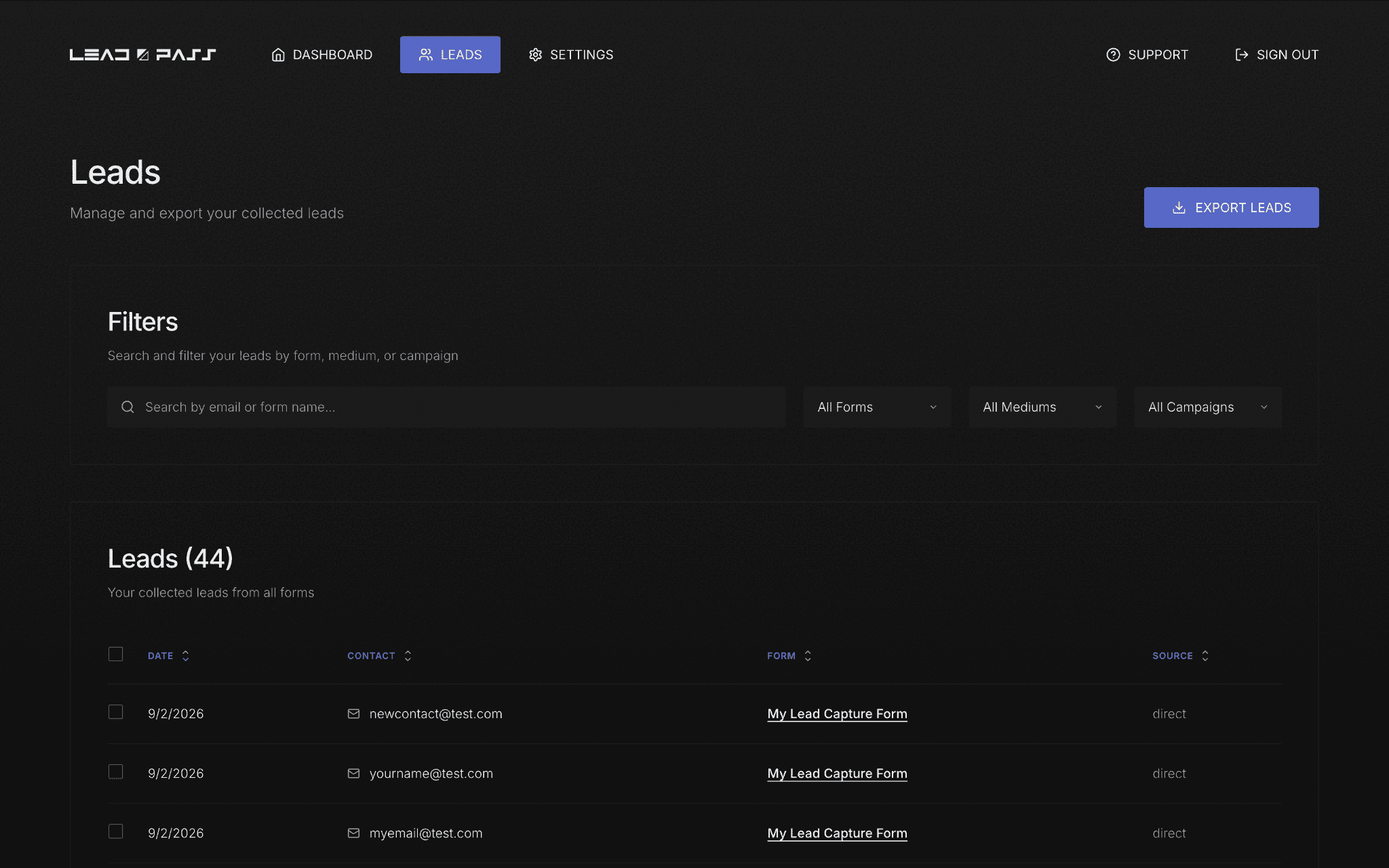
Every person who submits one of your forms shows up here — the Leads page is where you search, filter, export, and clean up your collected leads across every form you run.
The Leads table
At the center of the page is a table listing every lead you've collected, most recent first. Each row shows:
Date — when they submitted
Contact — their email address
Form — which form they came from
Source — where they came from (direct, referring source UTM)
The section header shows your total lead count in real time — for example, "Leads (1,839)" — so you always know your running total at a glance.
Searching and filtering
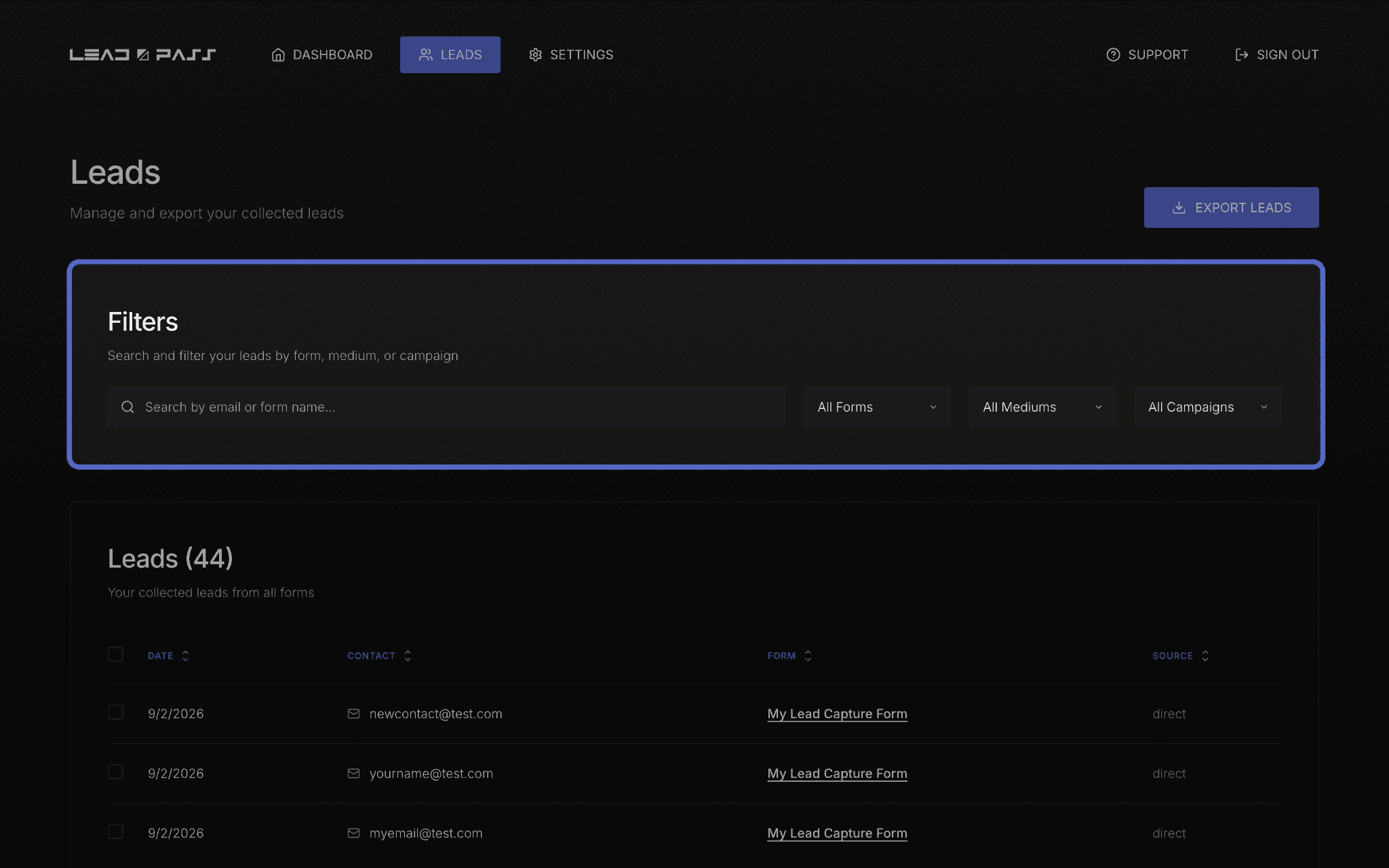
Above the table is a Filters panel with a search bar and three dropdowns:
Search — by email address or form name
All Forms — narrow down to leads from one specific form
All Mediums — filter by organic and paid
All Campaigns — filter by Meta ad campaign ID (you must have your Meta pixel installed and be using your forms in paid ads for this feature to apply)
These filters combine, so you can, for example, search a specific form and medium at the same time to answer questions like "how many people signed up for my newsletter from my ad campaign on Instagram?"
Exporting your leads
Click Export Leads at the top of the page to download your current lead list. If you've applied filters, the export reflects exactly what's currently showing in the table — so filter down to what you need before exporting if you only want a subset.
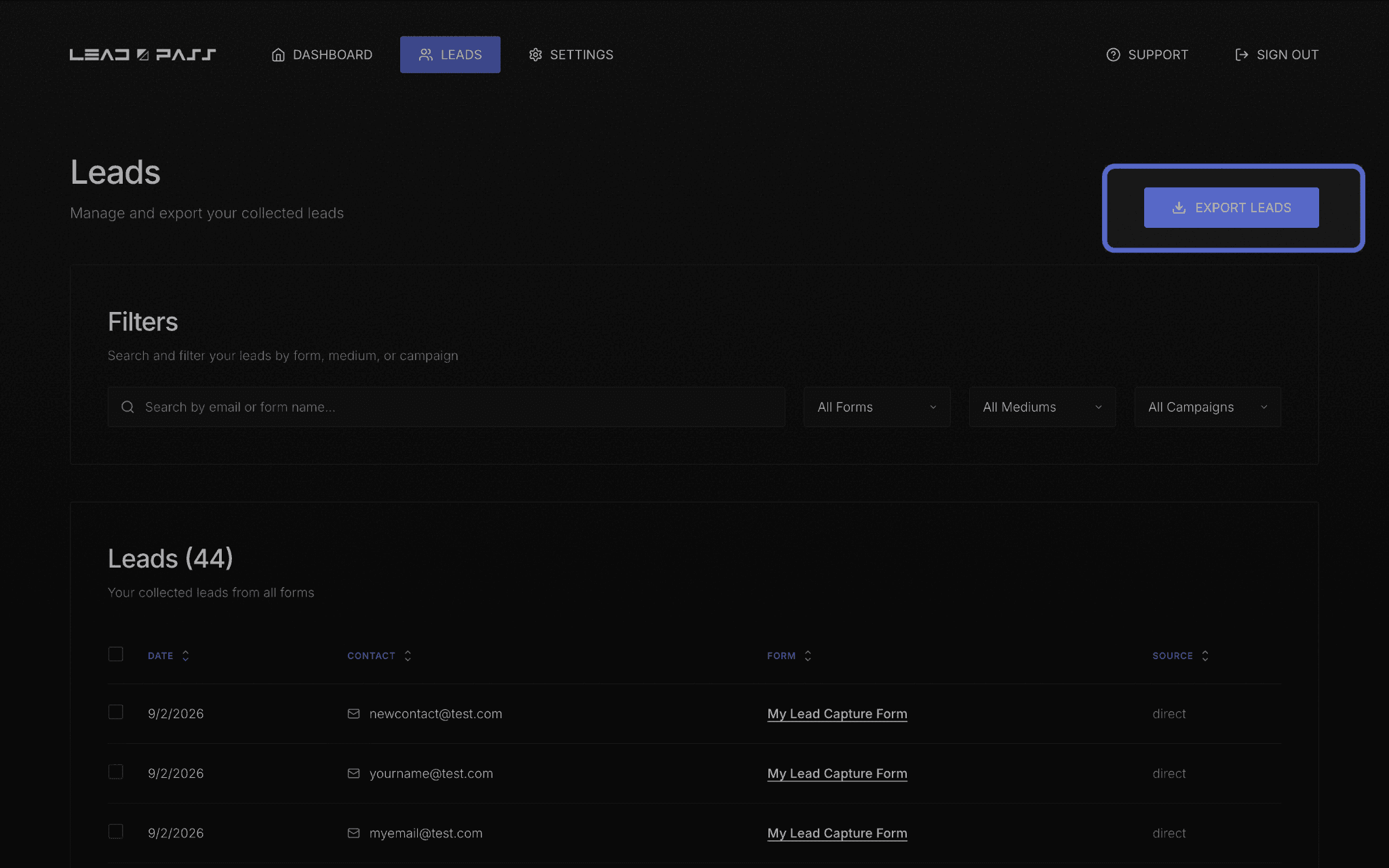
This is especially useful if you need to manually send leads somewhere else — an email platform, a CRM, a client, or anywhere else your workflow lives outside LeadPass.
Cleaning up your list
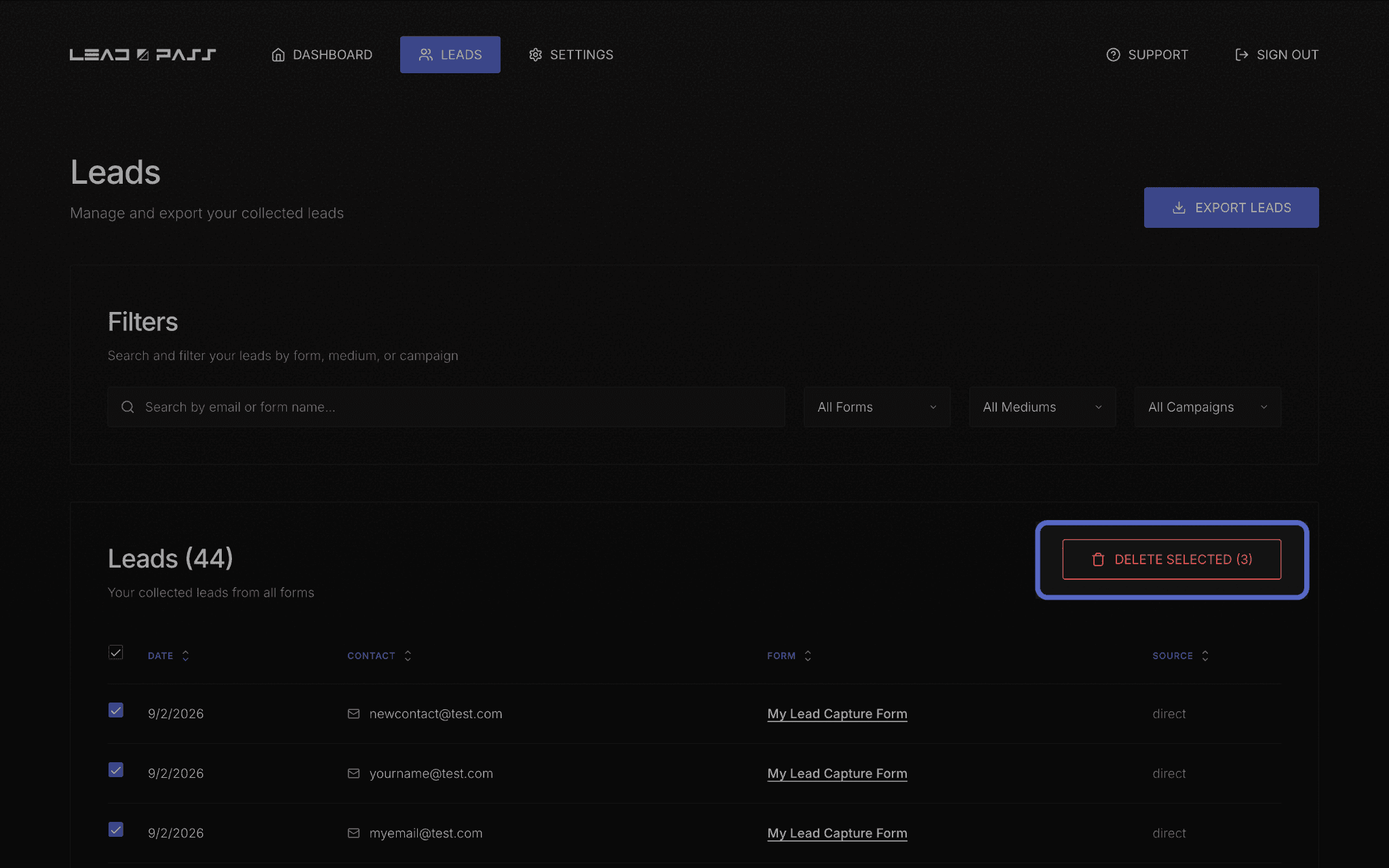
If you need to remove leads — test submissions, duplicates, or anything else — select the checkboxes next to the rows you want gone. Once at least one is checked, a Delete Selected button appears showing your current selection count, so you can confirm before removing anything.
What's next
Once you're comfortable navigating your leads, head to Meta Pixel setup and integration to start tracking pixel events with your forms.