
Understanding your Dashboard
Your Dashboard is the first thing you see every time you log in, and it's the home base for everything in LeadPass — your forms, your performance, and the shortcut to creating something new. This guide walks through each section so you know what you're looking at.
The welcome row
At the top of your Dashboard, you'll see a personalized greeting and one button: Create Form. That's intentional — creating your first form is the most important thing you can do here, so it's front and center from the moment you log in.
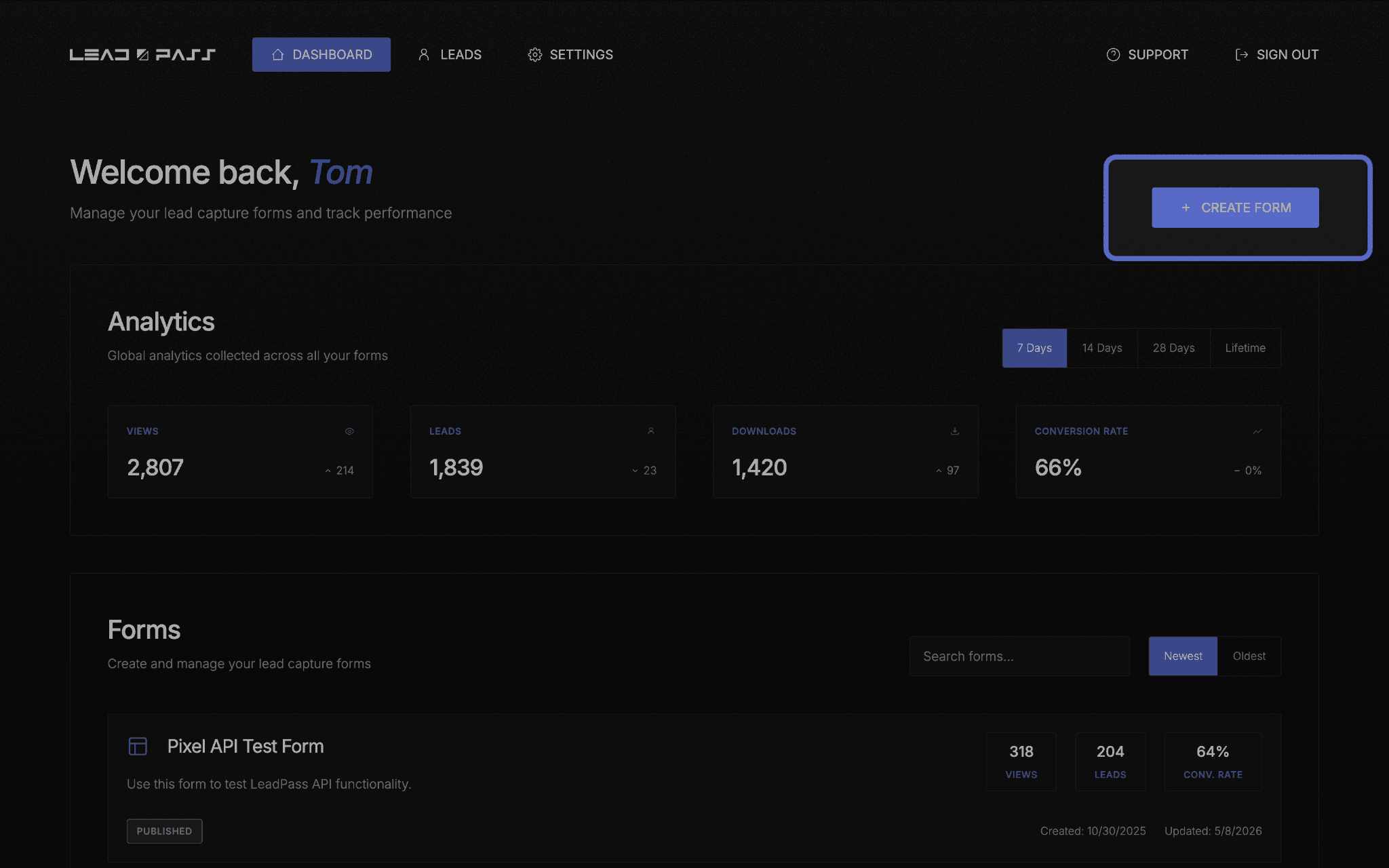
If you haven't created a form yet, this is your starting point — head to How to create a new form whenever you're ready.
Analytics
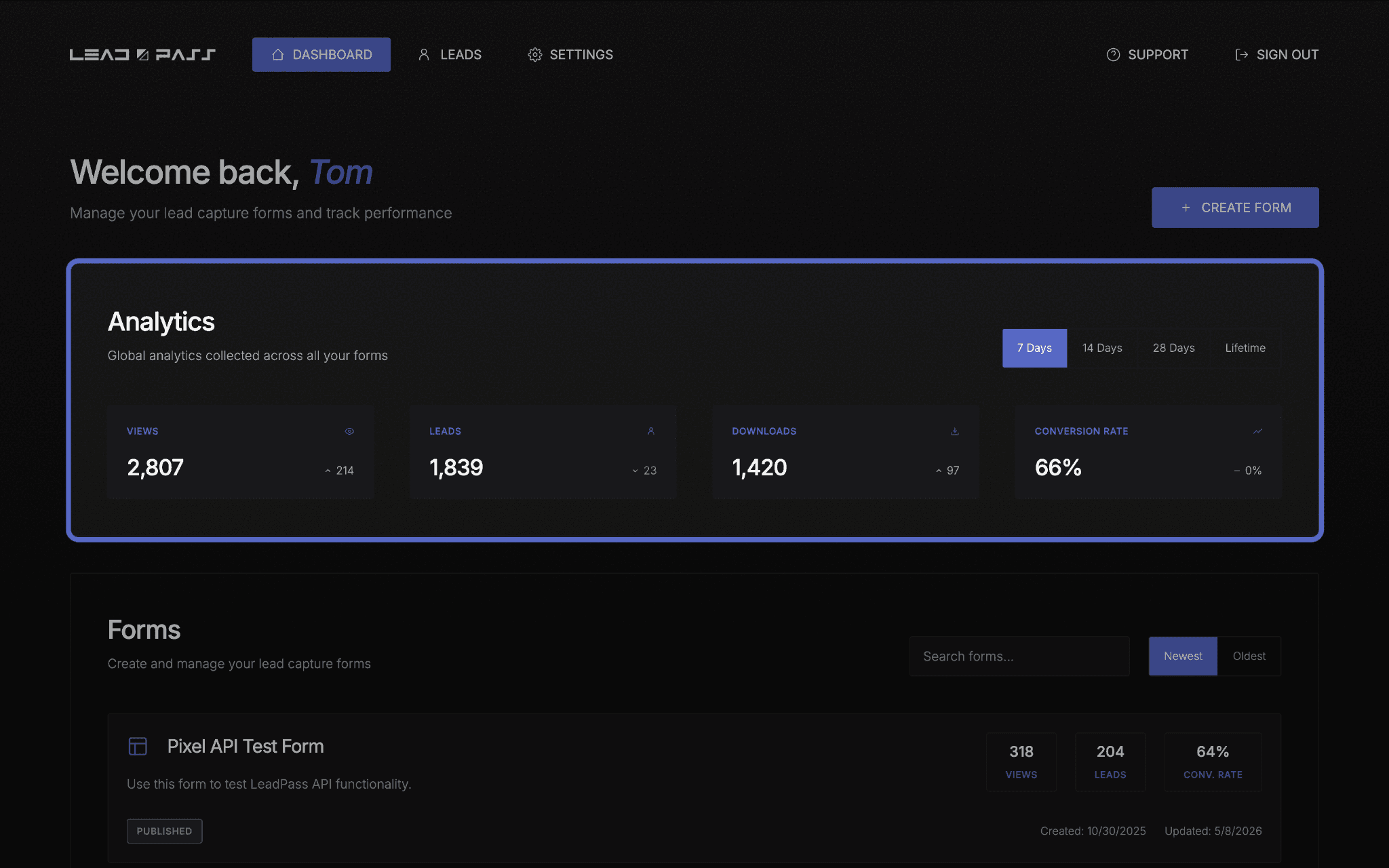
Below the welcome row is your Analytics panel — a snapshot of performance across all your forms combined, not just one.
You can adjust the time window using the toggle at the top: 7 Days, 14 Days, 28 Days, or Lifetime. Four stat cards update based on your selection:
Views — how many times your form pages were opened
Leads — how many people submitted their info
Downloads — how many files were delivered via Download Gate
Conversion Rate — the percentage of views that turned into leads
Each card also shows a small up or down indicator comparing the current period to the one before it, so you can tell at a glance whether things are trending up or down.
Your Forms
Below Analytics is your full list of forms. This is where you manage everything you've built.
Search — find a specific form by name if you have more than one
Sort — toggle between Newest and Oldest
Each form card shows its title, description, and three quick stats: Views, Leads, and Conv. Rate — so you can quickly see how individual forms are performing
Status badge — shows whether a form is published or still in draft
Quick actions — icons on each card let you edit, copy the link, open in a new tab, or delete that form without leaving the Dashboard
Metadata — see when your form was first created and last updated

What's next
If your Dashboard is still empty, start with How to create a new form. If you've already got forms live, head to Managing & exporting your Leads to see what you can do with the leads you're collecting.