
Customizing your form
Your form's content (headline, description, CTA) tells people what they're getting. This guide covers the other half: making it look like it belongs to you. This is Steps 3 and 4 of the form builder — Appearance and Background — and both are entirely optional, but a few minutes here goes a long way toward a form that feels intentional instead of default.
Step 3: Appearance
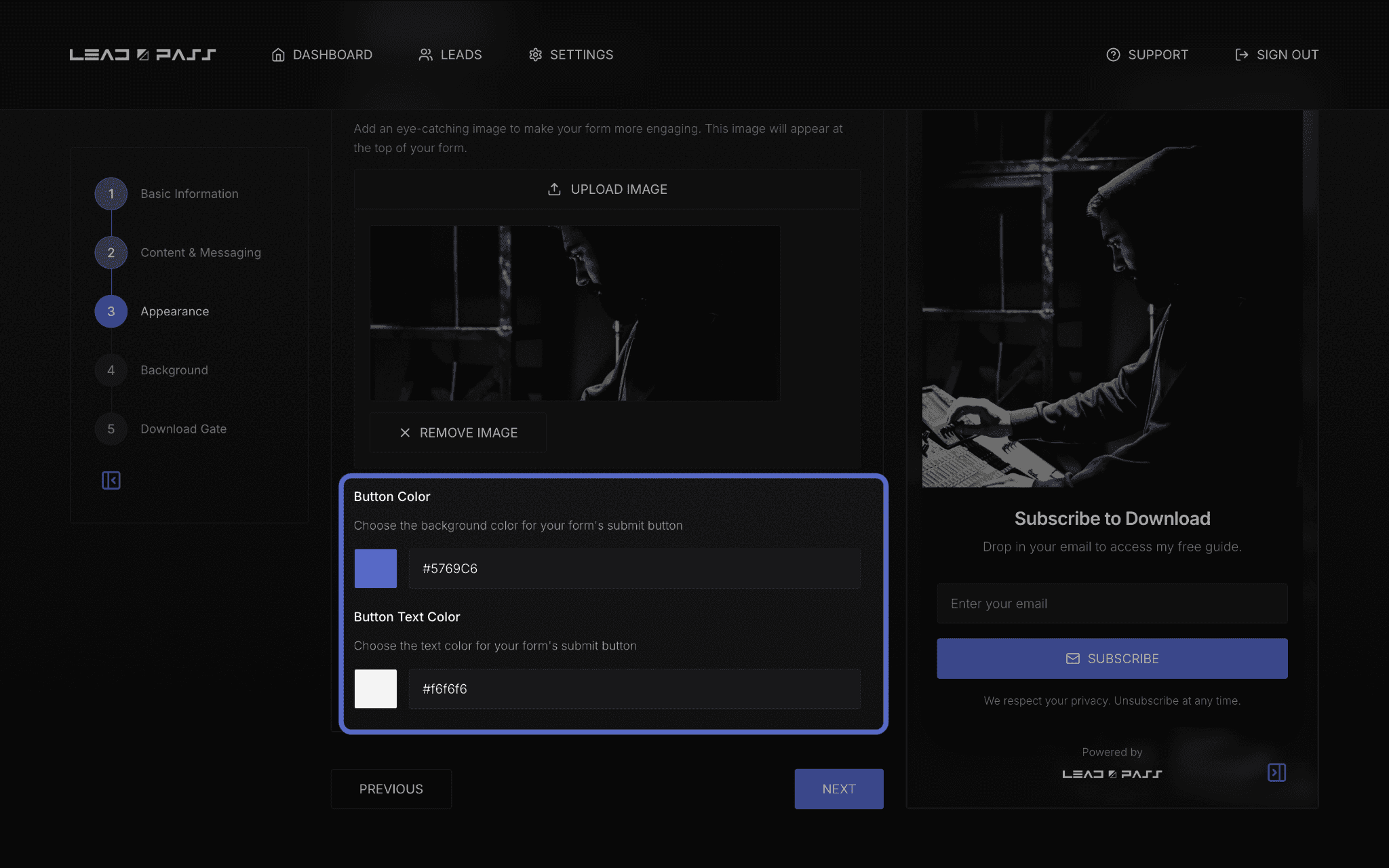
This step covers your form's primary image and your button colors.
Primary Image (optional)
An image makes your form more engaging, but it's entirely skippable — if you don't upload one, your form still works fine with just text.
Click Upload Image
Choose a file from your computer
Your image now appears in the live preview panel

Button Color & Button Text Color
Two separate color pickers control your submit button:
Button Color — the background color of the button itself.
Button Text Color — the color of the text inside the button.
Each has both a color swatch (click to open a picker) and a text field where you can type a hex code directly — useful if you're matching a specific brand color.
Step 4: Background
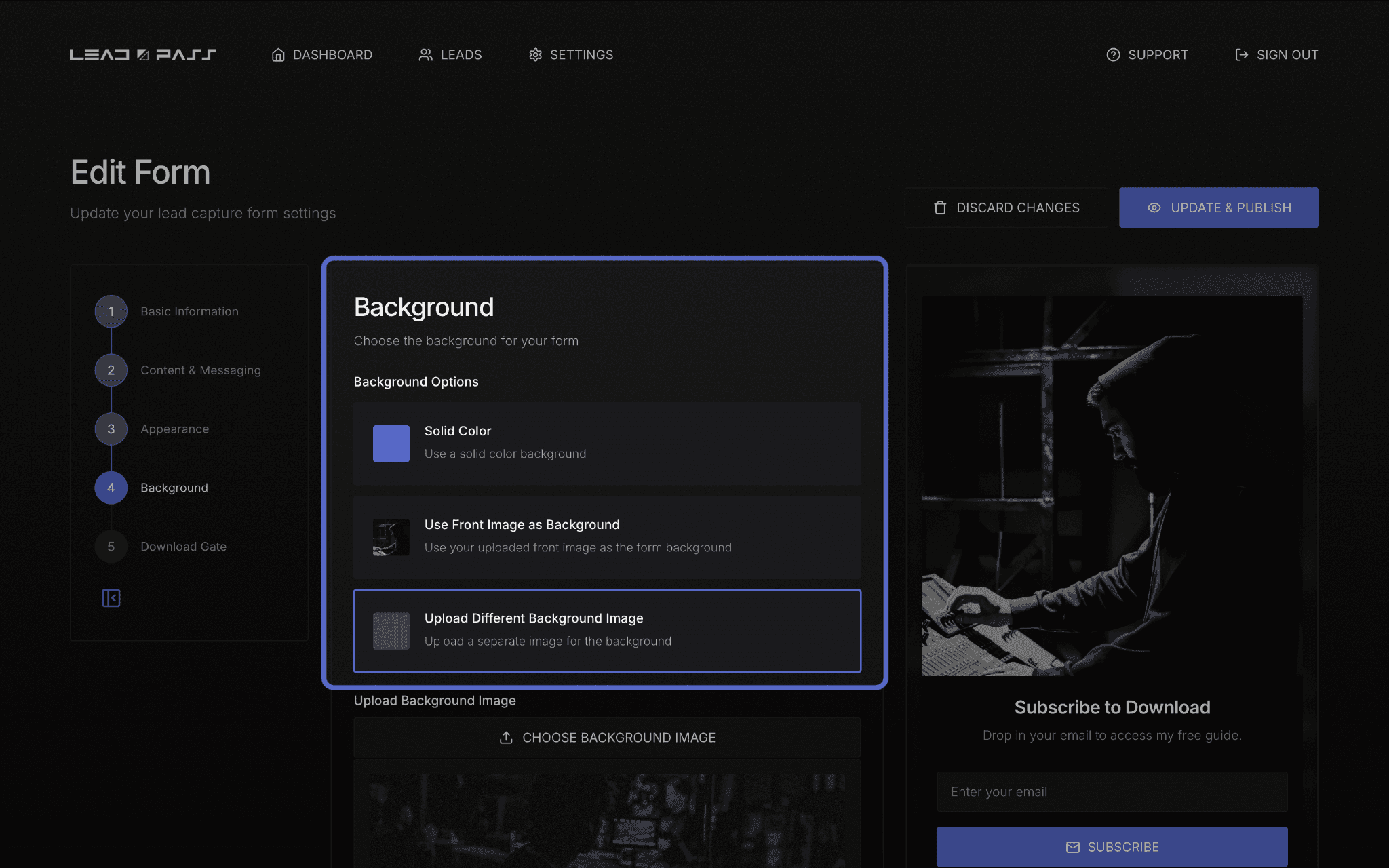
This step controls what sits behind your form content.
Background Options
You'll choose between three approaches:
Solid Color — a single flat background color (this is the default). Same pattern as the button colors: a swatch you can click, plus a hex field you can type into directly.
Use Front Image as Background — repurposes your primary image (added in Step 3) as a larger, blurred version for the background.
Upload Different Background Image — use a separate image specifically for the background, distinct from the Primary Image you may have added in Step 3.
A quick note on brand consistency
If you're running multiple forms for the same brand, using the same button colors and background approach across all of them makes your forms instantly recognizable to repeat visitors — a small thing, but it builds trust faster than a different look every time.
What's next
Once your form looks the way you want it, head back to How to create a new form to finish the remaining steps, or jump to Adding a Download Gate if appearance was the last thing standing between you and publishing.