
Adding a Download Gate
The Download Gate is the feature that makes LeadPass different from a plain contact form: the moment someone signs up, they get their file automatically. No manual sending, no complex automations, no follow-up email required.
This guide covers the Download Gate in detail — what it does, how to set it up, and a few things worth knowing before you publish.
What the Download Gate does
When Download Gate is turned on, submitting your form does two things at once for your visitor:
Their info is captured as a new lead (visible on your Leads page)
Their file downloads and delivers immediately — no waiting on you
This is the exchange your form is built around: they give you their email, they get your file, instantly.
Turning it on
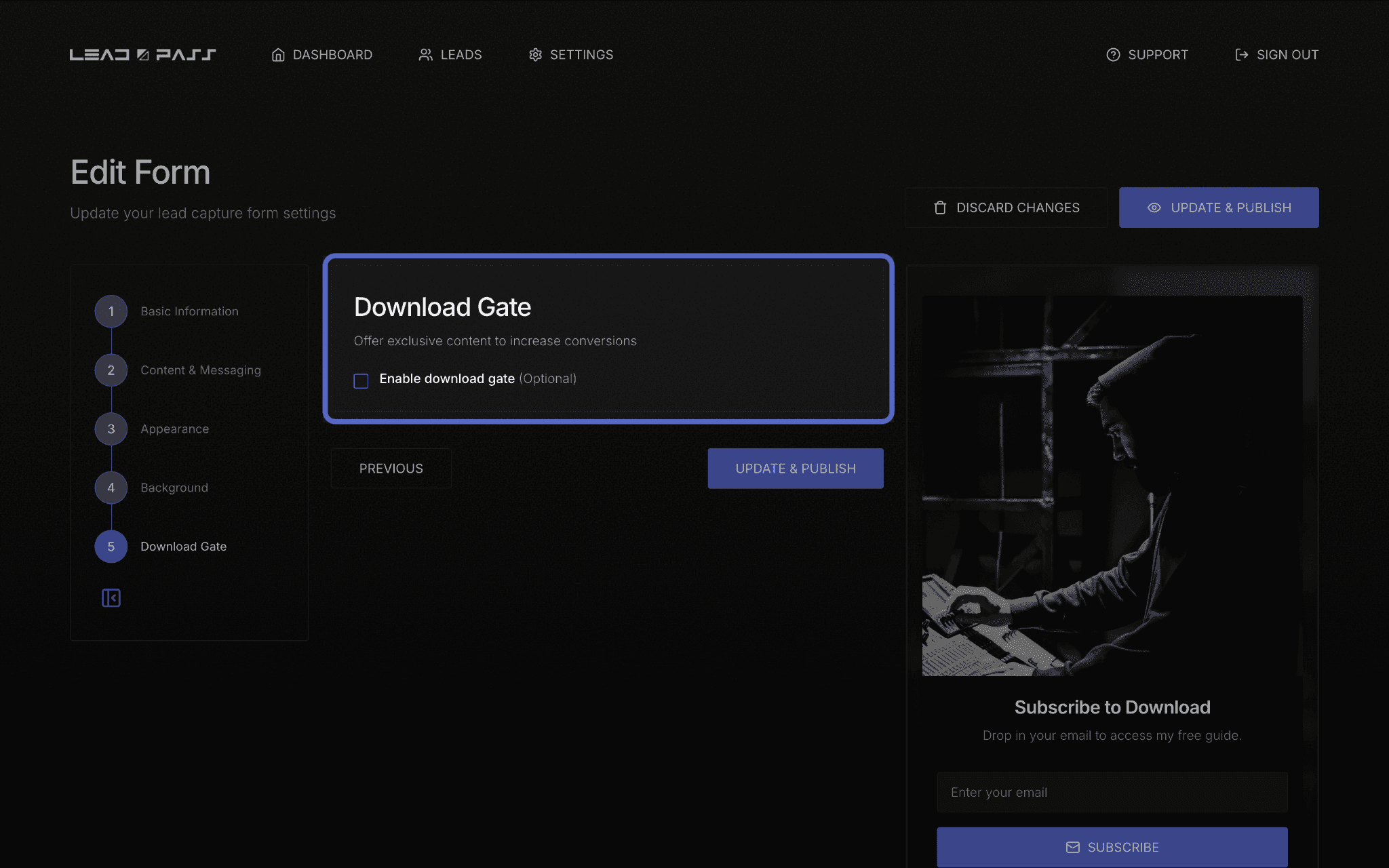
The Download Gate lives in Step 5 of the form builder, right before publishing.
Open your form in the builder (or start a new one — see How to create a new form if you haven't yet)
Navigate to the final step, labeled Download Gate
Check Enable download gate — it's optional, so this is the one step you have to actively turn on
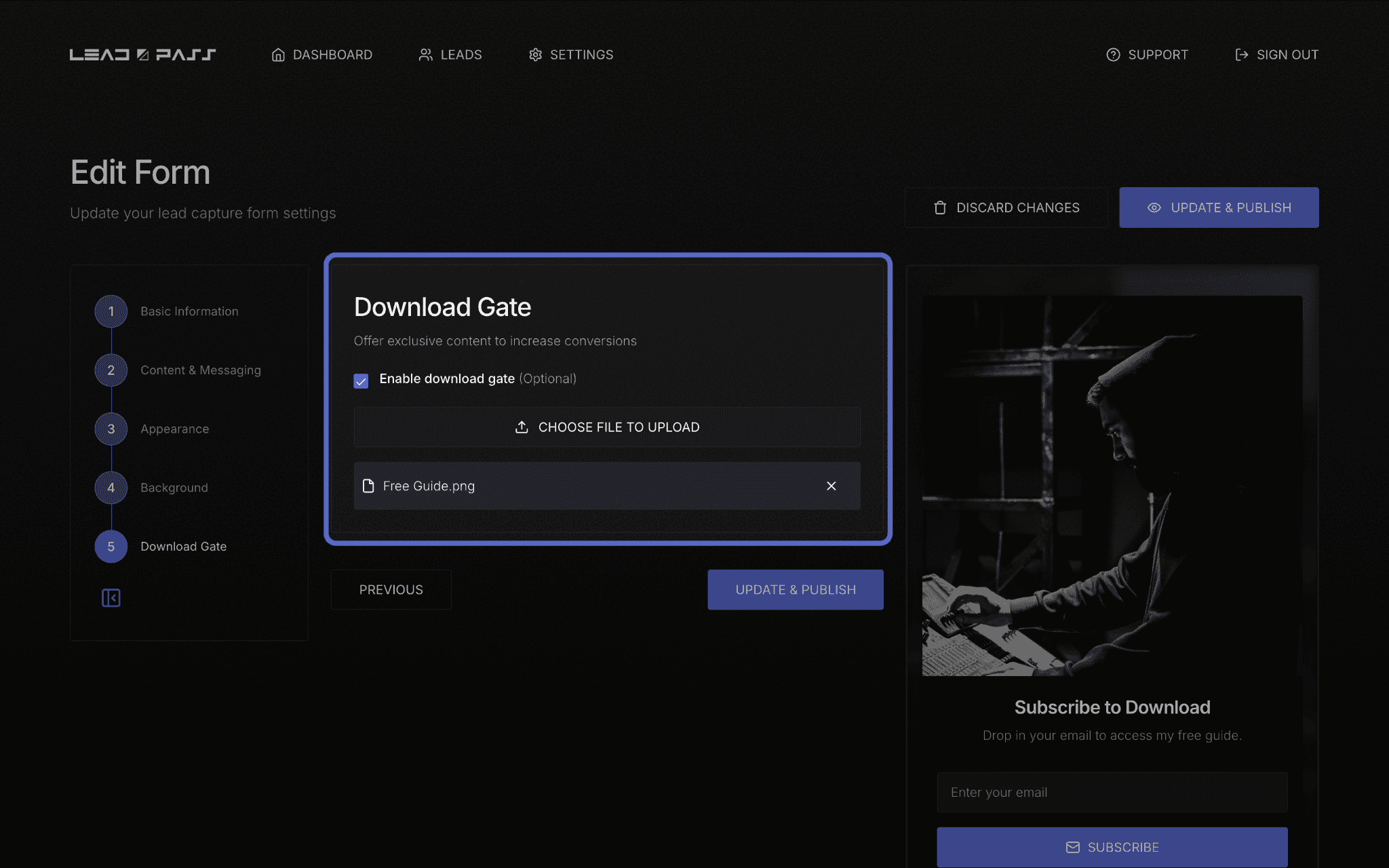
Click Choose File to Upload and select the file you want delivered
Uploading your file
Click Choose File to Upload and select the file from your computer. Once it's uploaded, it's tied to that specific form — every submission triggers a fresh delivery of the same file.
A few things worth knowing:
If you update the file later, new signups get the new version — anyone who already downloaded keeps the version they received.
Keep file names and formats something your audience will trust opening (a PDF titled final_v3_ACTUAL.pdf doesn't inspire confidence).
Confirming it works
Before you share your form widely, test it yourself:
Publish your form (see the last step of How to create a new form)
Submit the form using your own email address
Confirm the file downloads and opens as expected
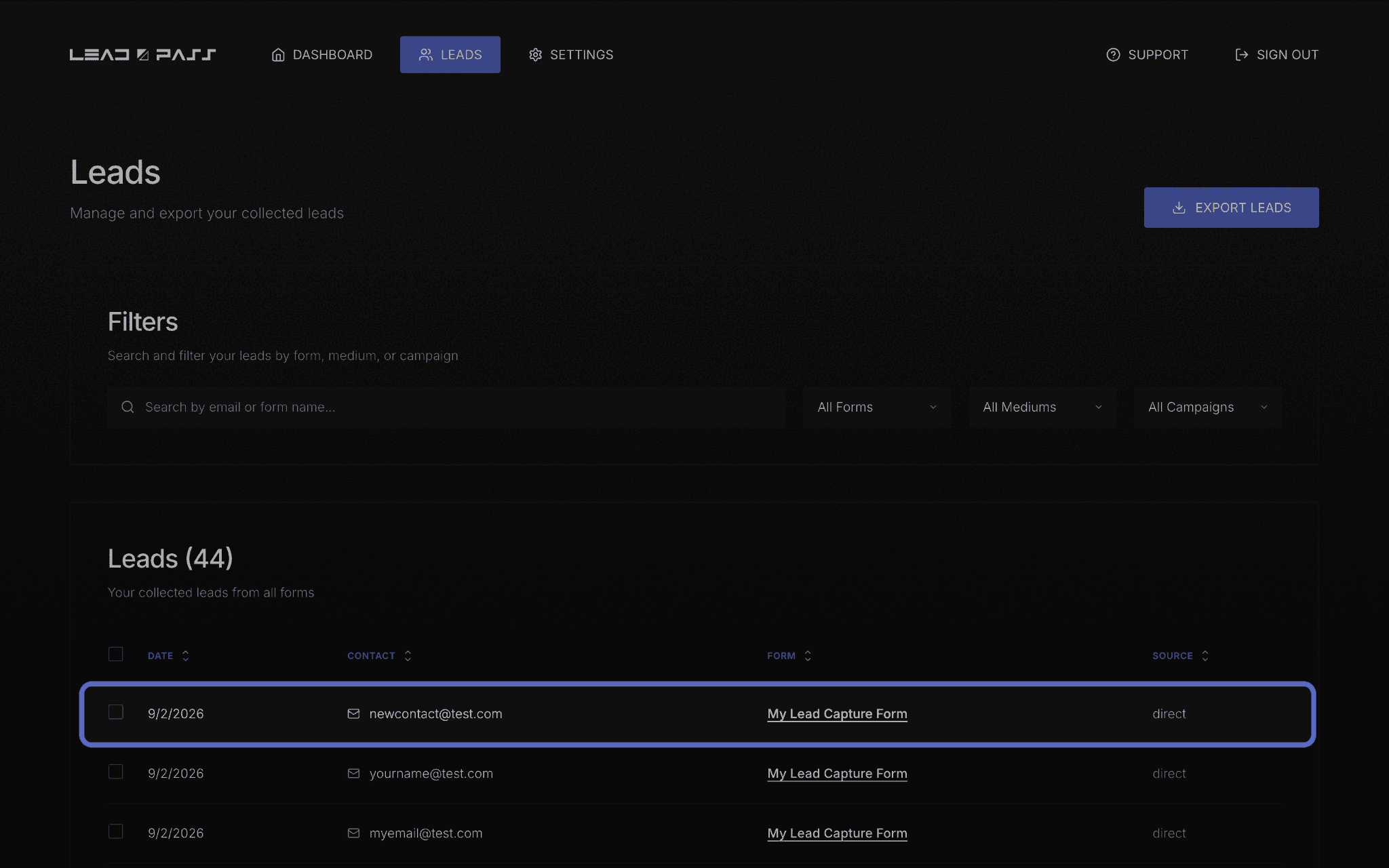
Check your Leads page — your test submission should appear there, tagged with the form it came from
What's next
Once your file delivery is confirmed and working, head to Getting your form link to start sharing your form, or Managing & exporting your Leads to see what you can do with the leads you collect.